logo elektroda
logo elektroda
X
logo elektroda

Hosting OpenBeken Webapp Locally with Docker on Various Operating Systems

taktlos 4773 23

TL;DR

  • A Docker image hosts the OpenBeken IoT Web App locally on Linux or Windows, letting an OpenBeken device redirect to a LAN-based file repository.
  • The app loads startup.js, which starts VueJS and then myComponent.vue, with each page implemented as a separate VueJS Single File Component.
  • Container setups expose port 7231 and come in four flavours, from node:18-alpine at 73 MB to alpine at 9 MB, with amd64, arm32, and arm64 support.
  • The result is local hosting with OTA updates, device filesystem management, configuration, and logging, while some variants need internet at container start or lack the standalone web app.
Generated by the language model.
ADVERTISEMENT
📢 Listen (AI):
  • Docker Image for OpenBeken IoT Web App Hosting

    source code: OpenBekenIOT Web App

    Designed for hosting an IoT web application, this Docker image initiates from a simple webpage at http://(IP):PORT/ on the device. The device redirects to a default repository, but with device configuration, local hosting on your LAN is possible for enhanced security.

    Key Components:

    Web App Structure:
    The app root page loads startup.js, initiating VueJS.
    startup.js further loads myComponent.vue, the core of the web app.
    Each page of the app is a separate VueJS Single File Component (SFC).

    Versatility in Hosting:
    Redirects to a default repository, configurable for local hosting on LAN or from the device filesystem.

    Rich Features:
    Over-The-Air (OTA) updates for seamless enhancements.
    Device filesystem management for efficient file handling.
    Device configuration for personalized settings.
    Logging capabilities for effective monitoring.

    This Docker image streamlines the deployment of an OpenBeken IoT web application, offering flexibility in hosting options and a robust feature set for an enriched user experience.


    Easy Local Web App Hosting with Docker!

    Ready to effortlessly share files locally? This Docker image, crafted with Alpine, Node, and OpenBeken magic, makes it a breeze! Whether you're on Linux or Windows, turn your computer/server into a 24/7 host.

    Simple Steps:


    1. Get Ready:
    Make sure Docker is installed on your system.

    2. Run Docker Magic:
    Log in with Docker execution privileges.

    Run this command:
    Code: Bash
    Log in, to see the code


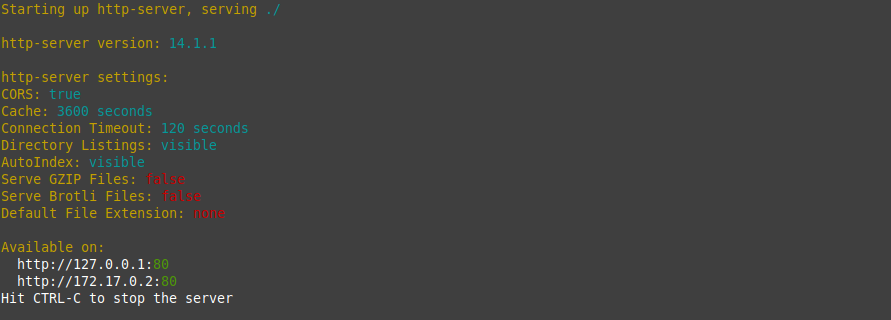
    This downloads the image and launches the container, exposing port 7231. Adjust the port according to your preference, ensuring alignment with application settings.

    Screenshot showing HTTP server configuration.

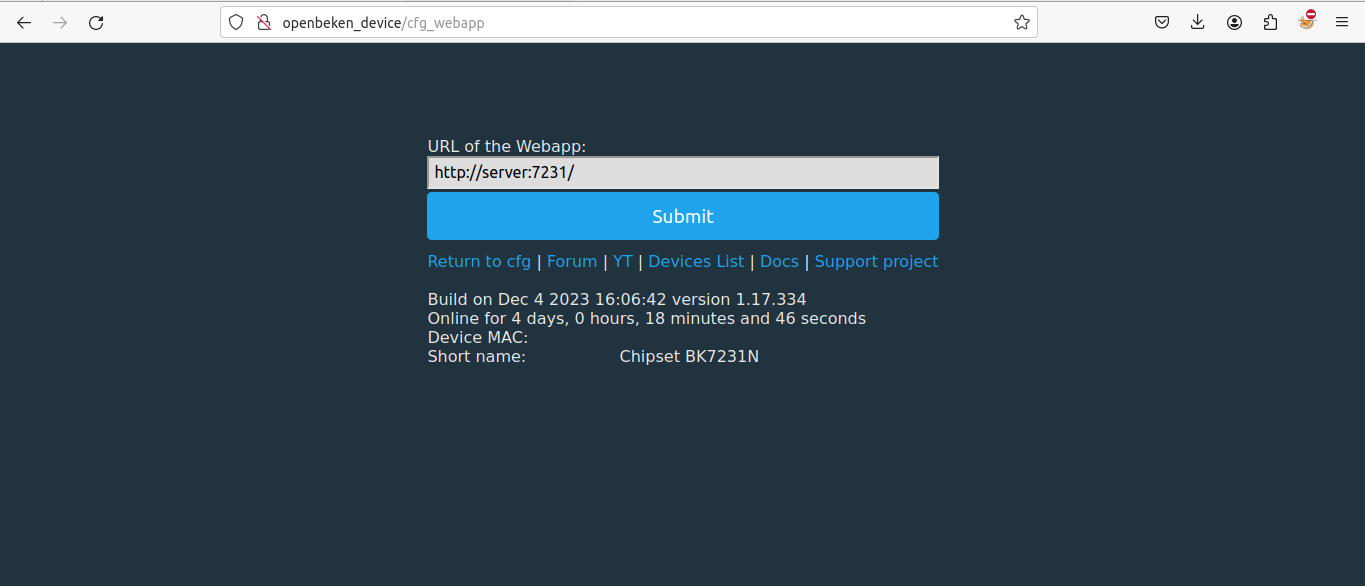
    3. Change URI address of hosted files(In my case files are hosted on computer with hostname: server):
    Please visit the specified page, and following that, proceed to adjust the settings on your device at the provided address (in this instance, it is the hostname of my IoT OpenBeken device).
    Code: Bash
    Log in, to see the code


    Here, the address of our local server, which stores files for us, is entered.
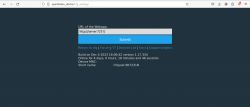
    OpenBeken IoT web application configuration page with a URL input box.

    4. Check the results

    With those steps completed, the configuration process should now be finished.


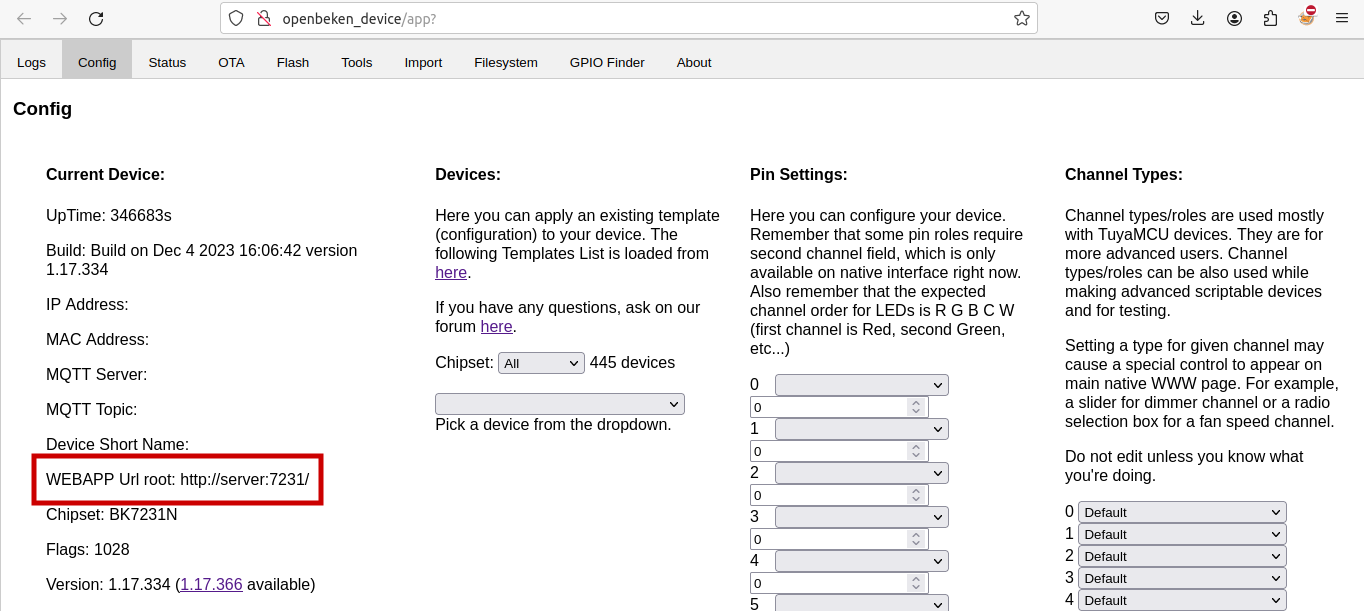
    Upon successful execution of the plan, the following is expected in the web browser:
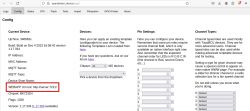
    Screenshot of the OpenBeken IoT configuration interface highlighting the web app URL.

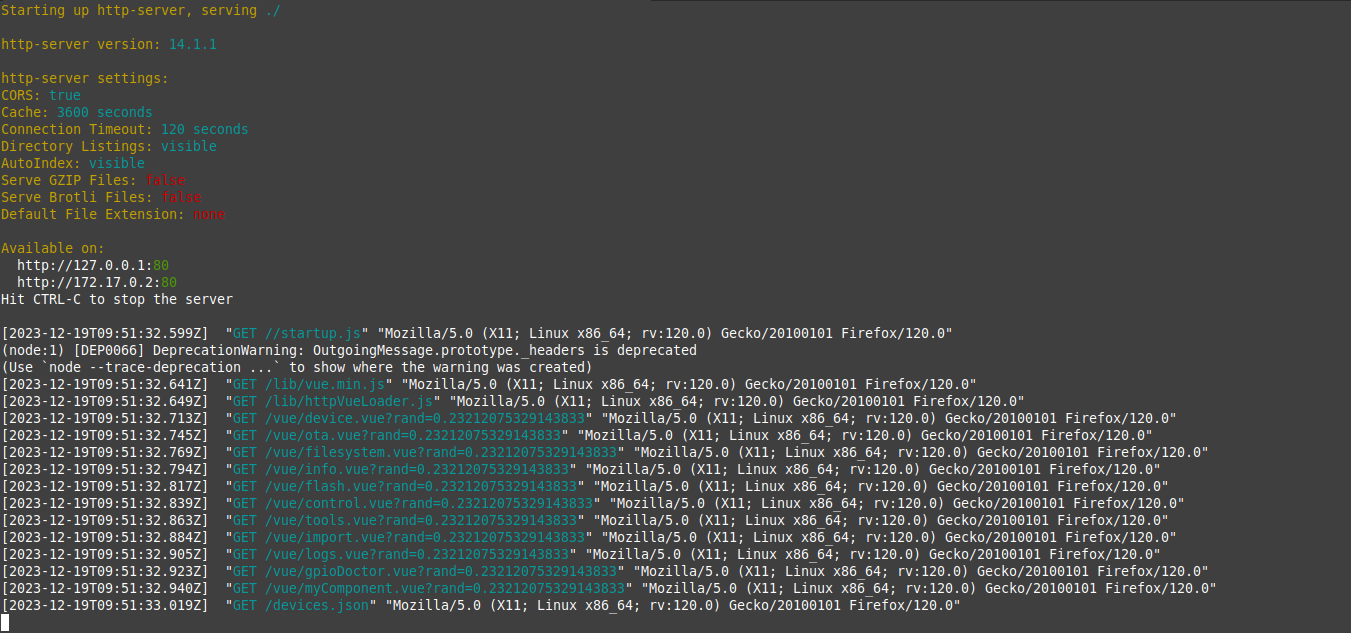
    On the server side within the Docker/container environment:
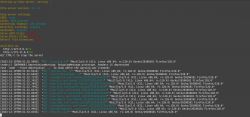
    Screenshot showing http server logs running in a Docker environment for the OpenBeken IoT application.

    If there are significant updates to the web app, the Docker image will be promptly refreshed to ensure users can benefit from the latest features and improvements. If you have any further questions or need assistance in the future, feel free to reach out.

    [EDIT]

    Different flavours of images available:

    Code: Bash
    Log in, to see the code

    Based on image: node:18-alpine
    Based on npm http-server: YES
    Image approx. size(compressed): 73 MB
    Architecture available: amd64, arm32, arm64
    Stand-alone version with Web App included: YES
    Update of Web App by pulling new image: YES
    Required Internet connection during container starts: NO

    Code: Bash
    Log in, to see the code

    Based on image: alpine:3.15
    Based on npm http-server: YES
    Image approx. size(compressed): 29 MB
    Architecture available: amd64, arm32, arm64
    Stand-alone version with Web App included: YES
    Update of Web App by pulling new image: YES
    Required Internet connection during container starts: NO

    Code: Bash
    Log in, to see the code

    Based on image: node:alpine
    Based on npm http-server: YES
    Image approx. size(compressed): 53 MB
    Architecture available: amd64, arm32, arm64
    Stand-alone version with Web App included: NO
    Update of Web App by restart of container: YES
    Required Internet connection during container starts: YES

    Code: Bash
    Log in, to see the code

    Based on image: alpine
    Based on Apache Web Server: YES
    Image approx. size(compressed): 9 MB
    Architecture available: amd64, arm32, arm64
    Stand-alone version with Web App included: NO
    Update of Web App by restart of container: YES
    Required Internet connection during container starts: YES

    Cool? Ranking DIY
    About Author
    taktlos
    Level 12  
    Offline 
    taktlos wrote 21 posts with rating 9, helped 4 times. Been with us since 2008 year.
  • ADVERTISEMENT
  • Helpful post
    #2 20869616
    p.kaczmarek2
    Moderator Smart Home
    Posts: 14550
    Help: 654
    Rate: 12555
    That's a very useful guide for people who want to have Web App working on the closed network without access to the internet. Still, I think it's important to add, that if you just want to make your own version of the Web App, you can host it just like we did, namely on Github pages. Github pages is a free static hosting (HTML and JS and media, no backend) that can be very useful for such purposes.

    Another interesting and very simple approach would be to use built-in HTTP hosting in Home Assistant:
    https://www.elektroda.com/rtvforum/topic3995065.html
    Helpful post? Buy me a coffee.
  • ADVERTISEMENT
  • #3 20869677
    taktlos
    Level 12  
    Posts: 21
    Help: 4
    Rate: 9
    I completely agree.

    The premise of creating this image was to have devices based on OpenBeken firmware completely offline.

    OpenBeken frees us from the Tuya cloud, and a locally hosted container ultimately cuts us off from Microsoft's "cloud." ;)

    Btw the ideal solution would be to host web app files on a device with OpenBeken firmware.
  • #4 20869686
    p.kaczmarek2
    Moderator Smart Home
    Posts: 14550
    Help: 654
    Rate: 12555
    It should be fully possible to host that web app on the OBK device itself, but it would make updates problematic. Futhermore, I haven't tested the size of web app files in a long time, so they might have grown a bit...

    Futhermore, our devices list (teardowns database templates) are also in the web app, so if you clone it, you will not get latest OBK device templates in the Web App, as far as I know, but maybe it could be fixed by inserting a permanent Github link for devices.json
    Helpful post? Buy me a coffee.
  • #5 20869772
    taktlos
    Level 12  
    Posts: 21
    Help: 4
    Rate: 9
    I see which means this leads us to a small walkaround:

    Image: closed0beta/openbeken_webapp_http-server

    Contains all necessary files and depends on my updates

    Command to run:
    Code: Bash
    Log in, to see the code


    Image: closed0beta/openbeken_webapp_http-server_startup

    Contains the necessary files to run the server and during startup updates the web app files from official Github repository. Of course, between running the command you will need to 'kill' the previous container because a port conflict will occur.

    The command to run:
    Code: Bash
    Log in, to see the code


    Image: closed0beta/openbeken_webapp_http-server_minimal

    Minimalistic version only 20MB - contains all necessary files and a web app files update on container start

    Command to run:
    Code: Bash
    Log in, to see the code
  • #6 20894944
    Angel0fDeath
    Level 13  
    Posts: 118
    Help: 2
    Rate: 33
    @taktlos It looks like this could be run on linux/amd only. Probably is good idea to be able to run on linux/arm also...
  • ADVERTISEMENT
  • #7 20895559
    taktlos
    Level 12  
    Posts: 21
    Help: 4
    Rate: 9
    Great suggestion!

    I've created an extra image for arm64, expanding platform support to two options: amd64 and arm64.

    [EDIT]
    Additional image for arm32 aka arm v7 due to Alpine version 3.15

    Command to run:
    docker run -p 7231:80  closed0beta/openbeken_webapp_http-server_arm32:latest
  • #8 20896358
    Angel0fDeath
    Level 13  
    Posts: 118
    Help: 2
    Rate: 33
    @taktlos As far as I know, Alpine 3.15 was outdated - I think at some point in November last year (2023). Nevertheless, the web page is not so complicated to require more. Works perfect, so everything is ok :)
    Thanks
  • #9 20896436
    taktlos
    Level 12  
    Posts: 21
    Help: 4
    Rate: 9
    Ok then. ARMv6 and ARMv7 build(32-bit) based on:

    Code: Bash
    Log in, to see the code


    Command to run:
    docker run -p 7231:80  closed0beta/openbeken_webapp_http-server_arm32:latest
  • #10 20896653
    Angel0fDeath
    Level 13  
    Posts: 118
    Help: 2
    Rate: 33
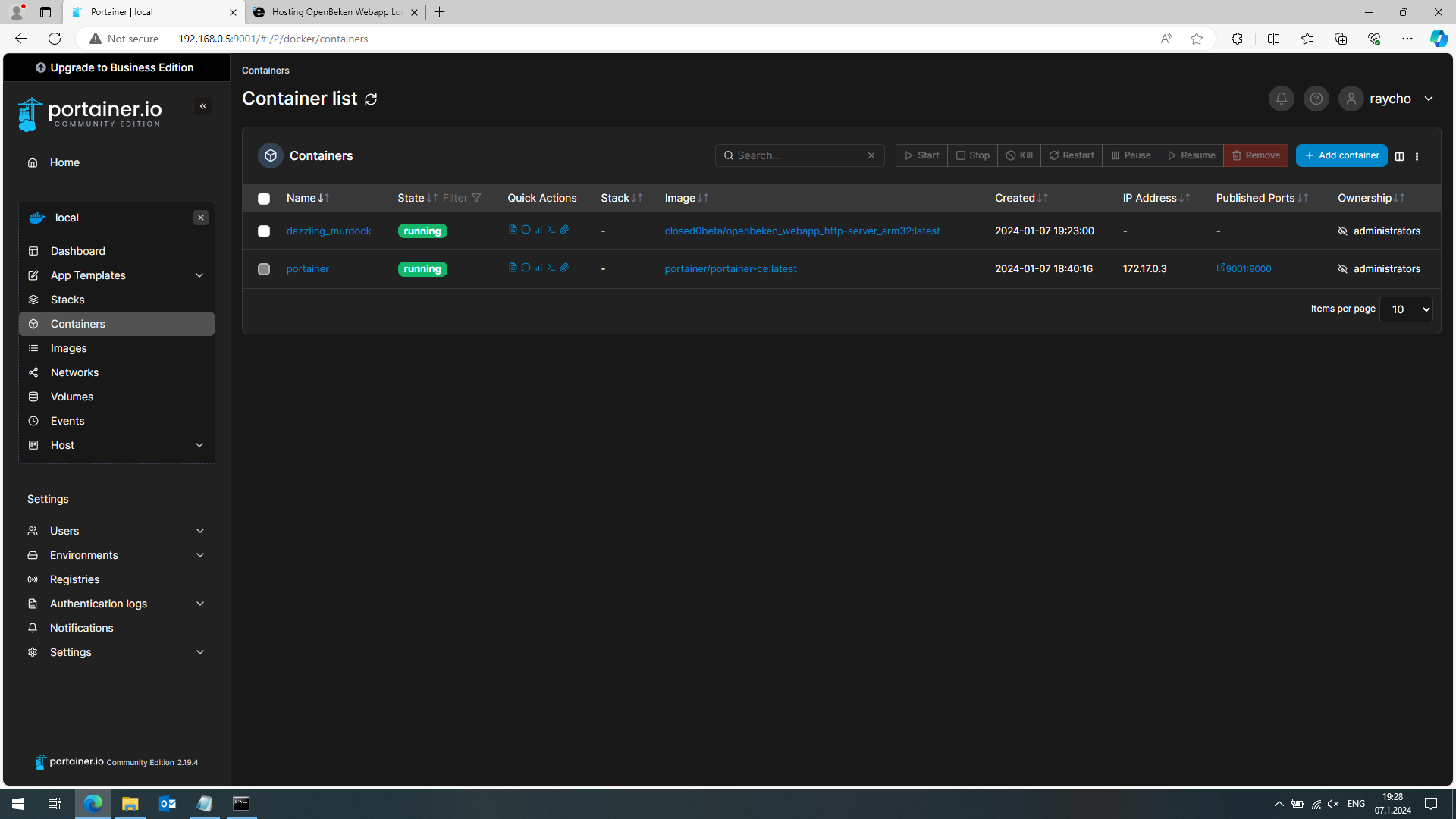
    @taktlos Something wrong with port publishing in the last version.

    Screenshot of Portainer panel showing a container list with port issues.

    without restart=always container stops after few seconds. With this option keeps running but keeps restarting and port is almost all the time closed.

    Exit code is always 139.
    Probably better to reverse back to previous version
  • ADVERTISEMENT
  • #11 20896830
    taktlos
    Level 12  
    Posts: 21
    Help: 4
    Rate: 9
    All right, so the earlier obsolete version of Alpine Linux back in business.

    Code: Bash
    Log in, to see the code
  • #12 20896964
    Angel0fDeath
    Level 13  
    Posts: 118
    Help: 2
    Rate: 33
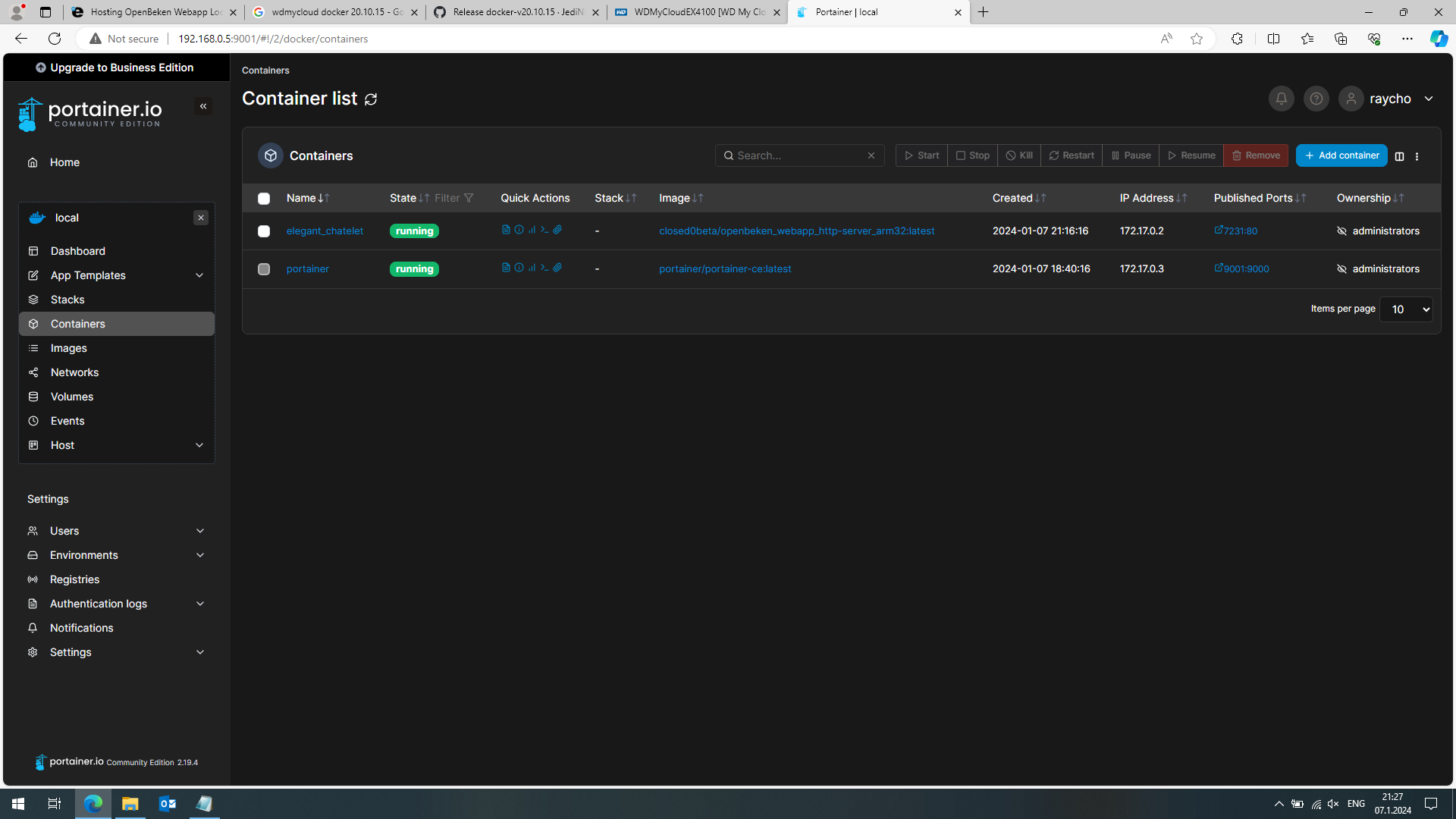
    Screenshot of the Portainer application showing a list of two running containers.

    Yep. With outdated Alpine - everything is ok.
    I think the problem is with my docker - v 20.10.15 for wdmycoudex4100 dated May 2022.... But there is no newer version.
    Nevertheless, THANKS
  • #13 20923333
    jkwim
    Level 13  
    Posts: 186
    Help: 4
    Rate: 25
    Hi,
    Finally I am getting at incorporating the Webapp in a private network with no internet access.

    To go one step further, I want to know whether the "Logs" option can be implemented via the device file system.

    I am thinking in the lines ...

    1. setting up file system like:

    /startup.js
    /lib/httpVueLoader.js
    /lib/vue.min.js
    /vue/logs.vue


    2. Commenting out other tabs from startup.js

    Code: Javascript
    Log in, to see the code


    Questions:

    1. Will above work? What else is needed in the file system?

    2. What would be the serving URL if files were to be accessed from the file system directly?
  • #14 20924084
    taktlos
    Level 12  
    Posts: 21
    Help: 4
    Rate: 9
    Hi,
    You have to ask person responsible for a web app development. Ie. github?
    This topic is about containeerized version only.
  • #15 20924116
    jkwim
    Level 13  
    Posts: 186
    Help: 4
    Rate: 25
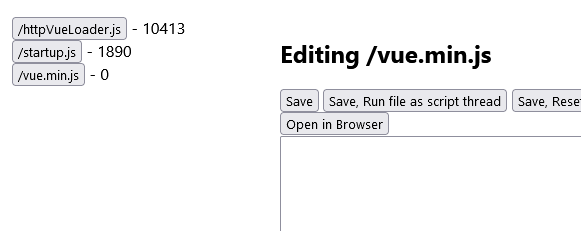
    I tried creating the files in LittleFS.

    Screenshot of a file editor showing three JavaScript files with their sizes.

    I edited the paths so that everything gets referenced from / (no sub directories).

    As you can see the two files occupy roughly 12kB.

    The next file vue.min.js is about 92kB and the save is not successful which probably means that there is not enough space.

    Somewhere in the forum I see a comment saying up to 512kB of space can be made available if we maintain the flash file size to a minimum.

    https://www.elektroda.com/rtvforum/topic3887748.html#19984683

    Is there a way to find out how much space is being taken up by the currently installed firmware from the device itself?


    UPDATE:
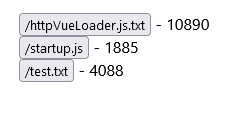
    I tried saving a test file with incremental character count and saw this error -28 in the logs:
    Screenshot of three files with their sizes in bytes.
    Debug:API:GET of api/info
    Error:API:Failed to write to test.txt with error -28
    Debug:API:3708 total bytes written
    Debug:API:GET of api/lfs/
    Debug:API:LFS read of 
    Debug:API: is a folder
    Debug:API:opened folder  lfs result 0


    Added after 7 [hours] 49 [minutes]:

    @p.kaczmarek2

    Do you have an answer for my question above regarding finding out the flash space used in the device?
  • #16 20925110
    Angel0fDeath
    Level 13  
    Posts: 118
    Help: 2
    Rate: 33
    @jkwim You most probably would like to check LittleFS size rather than firmware flash size. In web app -> logs run command lfs_size it will return size in bytes (hex). By me this returns 0x8000, which is 32768 bytes = 32KB.
    You can change lfs size with the same command lfs_size newsize. New size should be in bytes and in hex. Then reboot to apply changes. Take into account, if you have too large lfs you probably will not be able to perform ota before you reduce/delete lfs.
    Firmware flash size - which device we are speaking for. For instance SPI flash for T contains everything - bootloader, firmware, and lfs. Size is 1MB (v. 1.17.424). Total flash size of T devices - 2MB. Ota update file for this version is 494KB. This means you can increase your lfs up to 512KB and still have space for ota unless ota update file is smaller than 512KB.
    Take into account that for T devices, since last several updates, ota process deletes everything from lfs and reduces lfs to 32K again, so before ota update. be sure to backup everything from lfs.
    And in general as @taktlos said this topic is for containerized version only. If necessary open new topic.
  • #17 20925206
    p.kaczmarek2
    Moderator Smart Home
    Posts: 14550
    Help: 654
    Rate: 12555
    @jkwim please open another topic and we can look into that together, but long story short, LittleFS could have even 500kB or so, but it would need to be shifted to the OTA space, and then OTA would wipe out it....
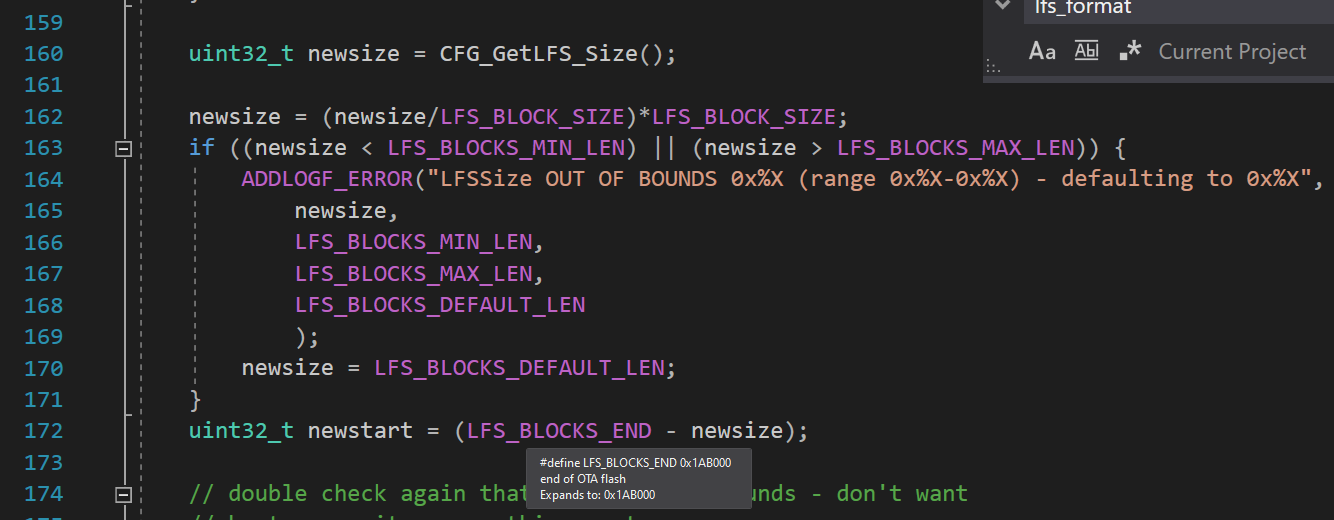
    EDIT: @Angel0fDeath it's almost as you say, with the exception of the fact that the second megabyte of flash already consists some things, like OBK config, or RF partition, or Tuya config, so we can't just overwrite it with LittleFS

    but the shortest answer is:
    
    lfs_format <size>
    

    the code wll properly offset LFS into the space and can overlap OTA for larger file systems:
    Code snippet about LittleFS size in flash memory.
    Helpful post? Buy me a coffee.
  • Helpful post
    #19 20933221
    taktlos
    Level 12  
    Posts: 21
    Help: 4
    Rate: 9
    Different flavours of images available:

    Code: Bash
    Log in, to see the code

    Based on image: node:18-alpine
    Based on npm http-server: YES
    Image approx. size(compressed): 73 MB
    Architecture available: amd64, arm32, arm64
    Stand-alone version with Web App included: YES
    Update of Web App by pulling new image: YES
    Required Internet connection during container starts: NO

    Code: Bash
    Log in, to see the code

    Based on image: alpine:3.15
    Based on npm http-server: YES
    Image approx. size(compressed): 29 MB
    Architecture available: amd64, arm32, arm64
    Stand-alone version with Web App included: YES
    Update of Web App by pulling new image: YES
    Required Internet connection during container starts: NO

    Code: Bash
    Log in, to see the code

    Based on image: node:alpine
    Based on npm http-server: YES
    Image approx. size(compressed): 53 MB
    Architecture available: amd64, arm32, arm64
    Stand-alone version with Web App included: NO
    Update of Web App by restart of container: YES
    Required Internet connection during container starts: YES

    Code: Bash
    Log in, to see the code

    Based on image: alpine
    Based on Apache Web Server: YES
    Image approx. size(compressed): 9 MB
    Architecture available: amd64, arm32, arm64
    Stand-alone version with Web App included: NO
    Update of Web App by restart of container: YES
    Required Internet connection during container starts: YES
  • #20 20933464
    Angel0fDeath
    Level 13  
    Posts: 118
    Help: 2
    Rate: 33
    Well, that's a good work. Thank you.
  • #21 21048761
    morgan_flint
    Level 14  
    Posts: 251
    Help: 4
    Rate: 59
    I tried this tutorial with this command:
    docker run -p 7231:80 closed0beta/openbeken_webapp_http-server:latest

    It's working OK but, at the beginning, I noticed the container didn't restart after a reboot. I corrected this by enabling "restart unless stopped" with Portainer

    Would this command have solved this from the beginning?
    docker run -d -p 7231:80 --restart unless-stopped closed0beta/openbeken_webapp_http-server:latest

    Sorry for this noob question, but maybe it helps noobs like myself to follow blindly the tutorial ;-)
  • #22 21132524
    tomik67
    Level 12  
    Posts: 111
    Rate: 11
    Hi.
    I'm having trouble adding an additional network card.
    I installed openbeken-webapp on QNAP server in Container Station.
    I installed it via the basic network and it worked, but all IoT devices are hidden in an IoT network with a different address.
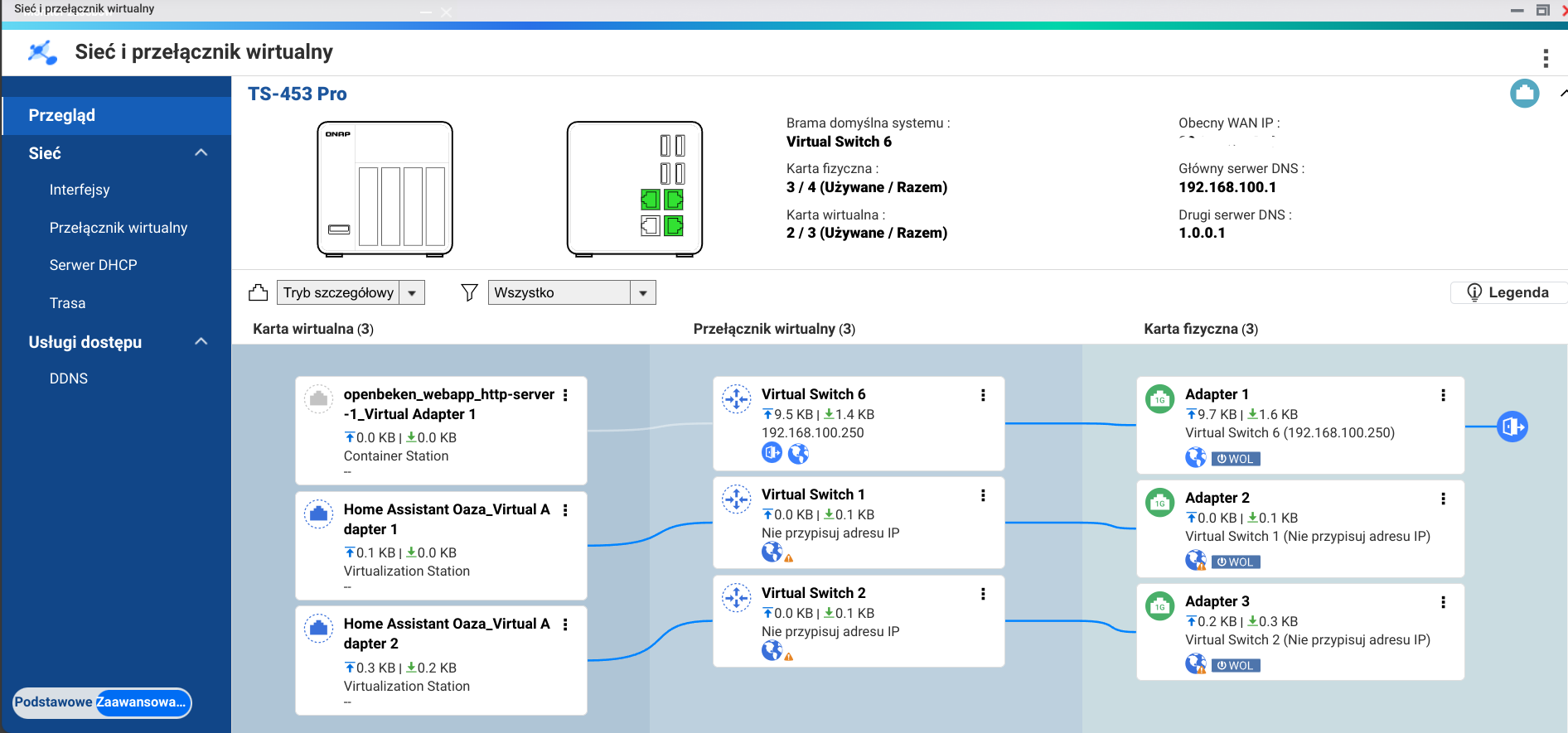
    Home Assistant also installed on QNAP uses two network cards, for the primary network and IoT.
    The basic network uses the network card "Adapter 1", openbeken-webapp has created a "virtual switch 6" and uses it via "Virtual Adapter 1".


    Network management interface on QNAP TS-453 Pro with several virtual switches and adapters.


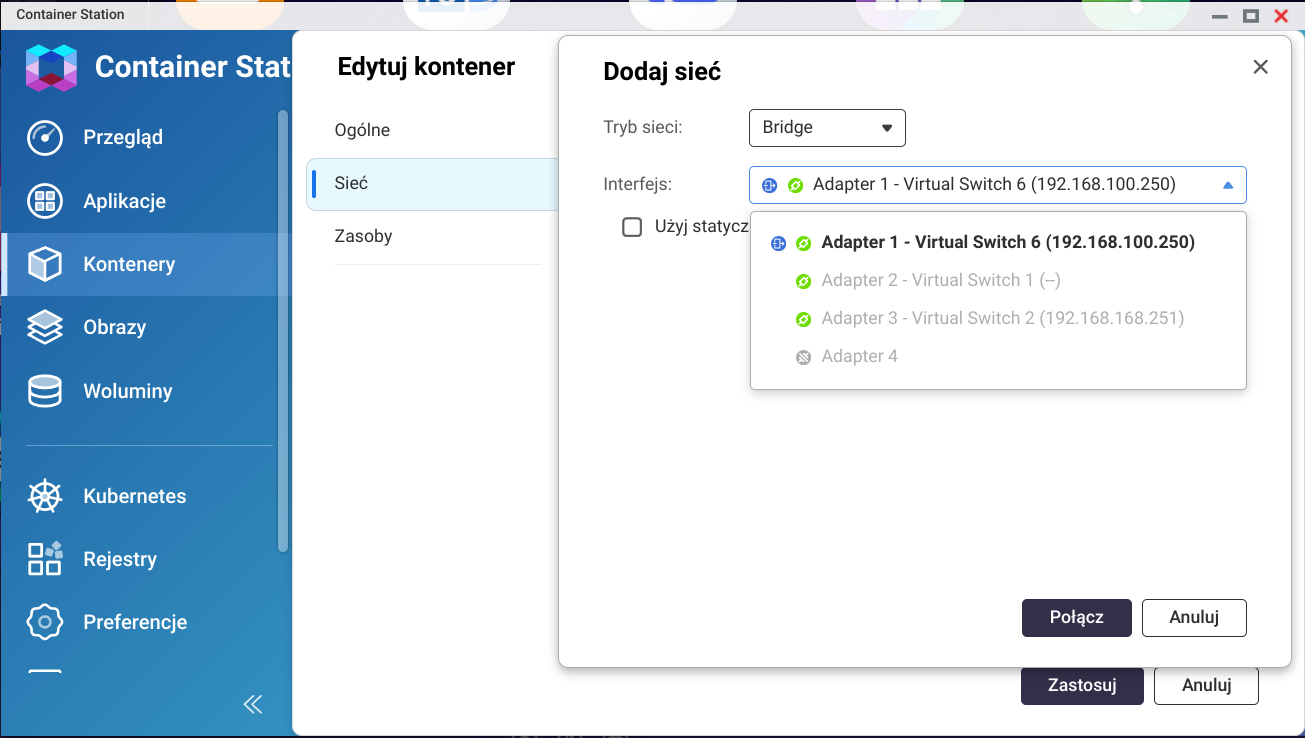
    I wanted openbeken-webapp to use the second virtual card connected via "Adapter 3" (IoT network) in QNAP in the same way as Home Assistant, but when I try to create it, the application sees the existing network adapters as not highlighted, I cannot use them.


    Screenshot of network settings in the Container Station app on a QNAP server.


    Where am I making a mistake? Can something be done about it?
  • #23 21646972
    gah
    Level 1  
    Posts: 1
    >>20933221

    Required internet connection YES, is that a typo or a change?

    https://hub.docker.com/r/closed0beta/openbeken_webapp_http-server

    Source code: https://github.com/OpenBekenIOT/webapp/tree/gh-pages
    Visit elektroda.com forum for more information: https://www.elektroda.com/rtvforum/forum390.html
    Based on image: node:alpine
    Based on npm http-server: YES
    Image approx. size(compressed): 53 MB
    Architecture available: amd64, arm32, arm64
    Stand-alone version with Web App included: NO
    Update of Web App by restart of container: YES
    Required Internet connection during container starts: YES
  • #24 21647035
    taktlos
    Level 12  
    Posts: 21
    Help: 4
    Rate: 9
    Hi, I haven't made any changes to scripts so it was my mistake with copy/paste;).
📢 Listen (AI):

Topic summary

✨ The discussion revolves around hosting the OpenBeken IoT web application locally using Docker across various operating systems. Users explore the creation and configuration of Docker images for the OpenBeken web app, emphasizing offline functionality and security. Key components include the app's structure based on VueJS, the ability to host on local networks, and Over-The-Air (OTA) updates. Various Docker images are shared, including options for different architectures (amd64, arm32, arm64) and minimal versions. Users also address issues related to network configurations, file system limitations, and the need for persistent storage. Solutions for running the web app on devices without internet access and managing logs through the device file system are discussed, along with troubleshooting tips for Docker container management.
Generated by the language model.

FAQ

TL;DR: With images from 9 MB to 73 MB and the goal of keeping devices fully offline, this guide shows OpenBeken users how to host the Web App on a LAN server with Docker, then repoint each device from the default repository to a local URL. As one expert put it, "completely offline." [#20869677]

Why it matters: Local hosting lets OpenBeken devices work inside closed networks, reduces outside dependencies, and gives you predictable control over updates.

Option Approx. size Web App included Update method Internet needed at container start
http-server 73 MB Yes Pull new image No
arm32 29 MB Yes Pull new image No
http-server_startup 53 MB No Restart container Yes
http-server_minimal 9 MB No Restart container Yes

Key insight: The most reliable offline setup uses a stand-alone image that already contains the Web App files. Startup-update images are smaller, but they depend on network access when the container starts.

Quick Facts

  • Default LAN example: publish port 7231:80, then point the device’s cfg_webapp setting to your local host, such as a server hostname on the same network. [#20868576]
  • Architecture support expanded from amd64 to arm64 and arm32, with a dedicated openbeken_webapp_http-server_arm32:latest tag added later. [#20895559]
  • A real ARM32 failure case showed Exit code 139 and broken port publishing on an older Docker stack; reverting the image base to Alpine 3.15 restored stability. [#20896830]
  • Stand-alone images work without internet at startup, while startup-update images fetch files on launch and therefore require internet access during container start. [#20933221]

How do I host the OpenBeken Web App locally with Docker and point my device to the LAN server instead of the default online repository?

Run the container locally, then change the device’s Web App URL to your LAN host. 1. Start Docker with docker run -p 7231:80 closed0beta/openbeken_webapp_http-server:latest. 2. Open your OpenBeken device at http://openbeken_device/cfg_webapp. 3. Enter the local server address that hosts the files, such as your server hostname, and save it. The example in the thread exposes port 7231 and serves the app from port 80 inside the container. [#20868576]

Which OpenBeken Docker image should I choose: closed0beta/openbeken_webapp_http-server, openbeken_webapp_arm32, http-server_startup, or http-server_minimal?

Choose a stand-alone image for offline reliability, or a startup-update image for smaller size. http-server is the full default at about 73 MB. arm32 is the smaller stand-alone build at about 29 MB. http-server_startup is about 53 MB and updates on restart. http-server_minimal is about 9 MB and also updates on restart. Use stand-alone images when you want no internet dependency during startup. [#20933221]

What is VueJS SFC in the OpenBeken Web App, and how do startup.js and myComponent.vue fit into the app structure?

"VueJS SFC is a component format that stores one app page in a single file, combining structure and logic for modular loading." In this app, the root page loads startup.js, which starts VueJS and then loads myComponent.vue as the core component. The thread also states that each page is a separate VueJS Single File Component, so the app is built from multiple SFC pages rather than one monolithic file. [#20868576]

What is LittleFS in OpenBeken, and how is it different from the Docker-based web app hosting discussed in this thread?

"LittleFS is a device file system that stores files directly in flash memory, with tight size limits and device-level persistence." It differs from Docker hosting because Docker serves the Web App from a separate server or NAS, while LittleFS stores files on the OpenBeken device itself. The thread’s Docker guide is about containerized hosting only, and later posts explicitly move LittleFS discussion into a separate topic. [#20924084]

Why does the openbeken_webapp container not come back after a reboot, and how do I use Docker restart policies like --restart unless-stopped correctly?

The container does not restart after reboot if you launched it without a restart policy. Use Docker with a policy such as --restart unless-stopped so the container starts again automatically after the host reboots. One user confirmed that enabling “restart unless stopped” in Portainer fixed the issue, and suggested this command: docker run -d -p 7231:80 --restart unless-stopped closed0beta/openbeken_webapp_http-server:latest. That approach keeps the service persistent for a 24/7 host. [#21048761]

What causes Exit code 139 and broken port publishing in the ARM32 OpenBeken webapp container, and why did reverting to Alpine 3.15 fix it on older Docker versions?

The failure was tied to the newer ARM32 build on an older Docker environment, not to the port mapping syntax itself. One user reported Exit code 139, repeated restarts, and a port that stayed closed on Docker 20.10.15. After the maintainer reverted the ARM32 image back to Alpine 3.15, the same user confirmed that “everything is ok.” This makes the practical root cause an old Docker stack that did not behave well with the newer base image. [#20896964]

How can I run the OpenBeken Web App container on amd64, arm64, and arm32 devices, and which image tags support each architecture?

Run the image tag that matches your platform, then publish port 7231 to container port 80. The thread first used closed0beta/openbeken_webapp_http-server:latest, then added arm64, and later added a dedicated ARM32 command: docker run -p 7231:80 closed0beta/openbeken_webapp_http-server_arm32:latest. The final image summary says the available architectures are amd64, arm32, and arm64 across the listed variants. [#20933221]

What are the trade-offs between hosting the OpenBeken Web App in Docker, on GitHub Pages, in Home Assistant HTTP hosting, or directly on the OBK device?

Docker is best for a closed LAN, GitHub Pages is best for free static hosting, Home Assistant can reuse built-in HTTP hosting, and device hosting is the most self-contained. Docker turns a PC or server into a 24/7 host and supports offline operation. GitHub Pages is free but not for isolated networks. Hosting on the OBK device is the “ideal solution” for full independence, but updates become harder and file size can become a constraint. [#20869686]

How do the stand-alone OpenBeken images differ from the startup-update images in terms of internet access, update method, and image size?

Stand-alone images bundle the Web App, while startup-update images fetch or refresh files when the container starts. In the thread, stand-alone images are http-server at about 73 MB and arm32 at about 29 MB. They update by pulling a new image and do not require internet at startup. Startup-update images are http-server_startup at about 53 MB and http-server_minimal at about 9 MB. They update on container restart and require internet during startup. [#20933221]

Why would the ideal OpenBeken setup be to host the web app files directly on the device, and what update problems does that create?

Hosting directly on the device is ideal because it removes dependence on outside servers and keeps the whole system local. The thread explicitly says the ideal solution would be to host Web App files on an OpenBeken device. The downside is updates: the maintainer noted that hosting on the device should be possible, but updates become problematic, and cloned files may miss the latest device templates stored in the Web App. [#20869686]

How can I make an offline OpenBeken installation work fully inside a private network with no internet access?

Use a stand-alone Docker image, host it on your LAN, and point each device to that local address. The thread says this guide is useful for people who want the Web App working on a closed network without internet access. The practical path is simple: run a bundled image like http-server, avoid startup-update images that need internet, and set cfg_webapp to your local server URL so the device stops using the default online repository. [#20869616]

What exactly does the cfg_webapp page do in OpenBeken, and how should I format the local server URL there?

cfg_webapp is the device page where you set the URI that tells OpenBeken where to load Web App files from. In the thread, the maintainer tells users to open http://openbeken_device/cfg_webapp and enter the address of the local server that stores the files. Use a LAN-reachable hostname or IP with the correct port, such as a server hostname serving the container on 7231. The goal is to replace the default repository with your local host. [#20868576]

If I want to host only the Logs tab from the OpenBeken Web App in the device file system, what files and paths are needed, and what URL would serve them from the device directly?

The thread does not provide a confirmed working Logs-only file layout or a final serving URL. One user proposed startup.js, httpVueLoader.js, vue.min.js, logs.vue, and edited paths under /, but the maintainer redirected the question because the topic covers only the containerized version. A later test also hit storage limits after roughly 3,708 bytes in LittleFS, so the idea remained unresolved in this thread. For a definitive Logs-only path map, the discussion moved to a separate topic. [#20924116]

How can I check and resize LittleFS space on an OpenBeken device with commands like lfs_size or lfs_format, and what are the OTA risks?

Check LittleFS with lfs_size, resize it with lfs_size newsize, or format and place it with lfs_format <size>. One user reported lfs_size returning 0x8000, which equals 32,768 bytes or 32 KB. Another reply says LittleFS can reach about 500 kB by overlapping OTA space. The risk is clear: larger LittleFS can reduce or break OTA room, and some OTA updates wipe LittleFS and shrink it back to 32 KB. [#20925206]

How do I attach the OpenBeken Web App container in QNAP Container Station to a second network adapter or IoT VLAN so it can reach devices on a different subnet?

This thread does not contain a working fix for QNAP multi-NIC or IoT VLAN attachment. The user describes a QNAP setup where Home Assistant uses two adapters, but openbeken-webapp created “virtual switch 6” and would not let the user select the existing highlighted adapters for the IoT network. No later reply in the thread answers that question, so the only safe conclusion is that the issue remains unresolved here. [#21132524]
Generated by the language model.
ADVERTISEMENT